
Learn how to set a price for each book in your library.
With a few clicks, you can enable any book of your library for purchase directly from inside the library, with 100% royalties from Kotobee.
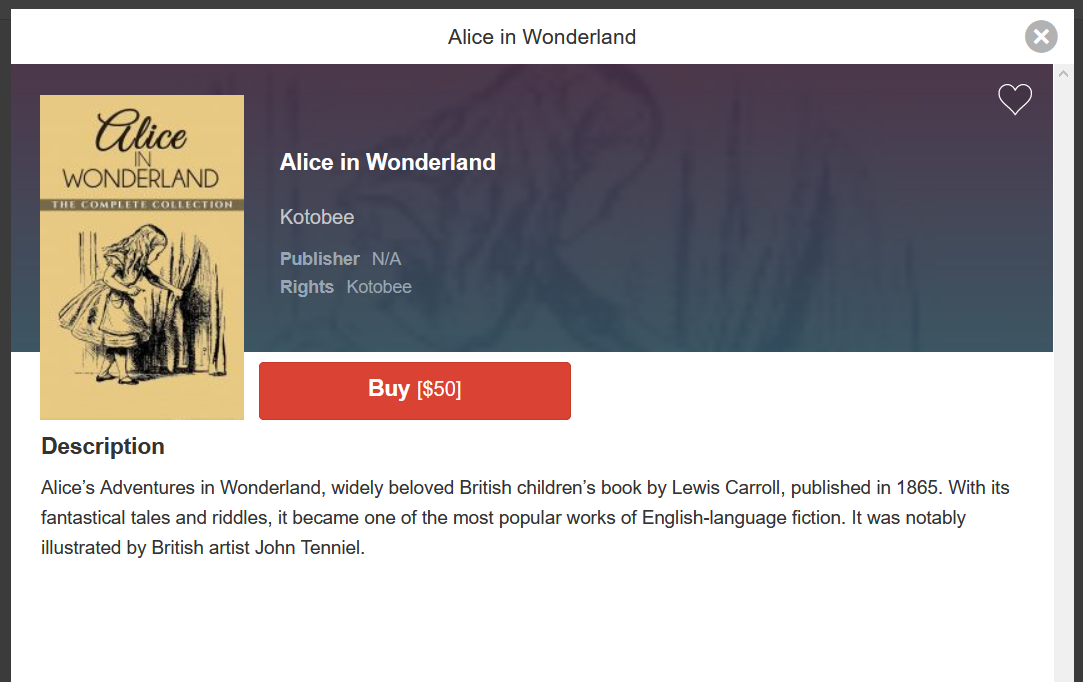 In order for a book to be purchasable, it needs to satisfy the following conditions:
- The library permissions must be set to private
- The book must have a non-zero price
- The book must be set as "purchasable"
- Users must already have an account (you may enable self-registration to allow users to create their accounts)
To enable a book for purchase and set its price, follow the steps below.
Open the library and enter the Books section.
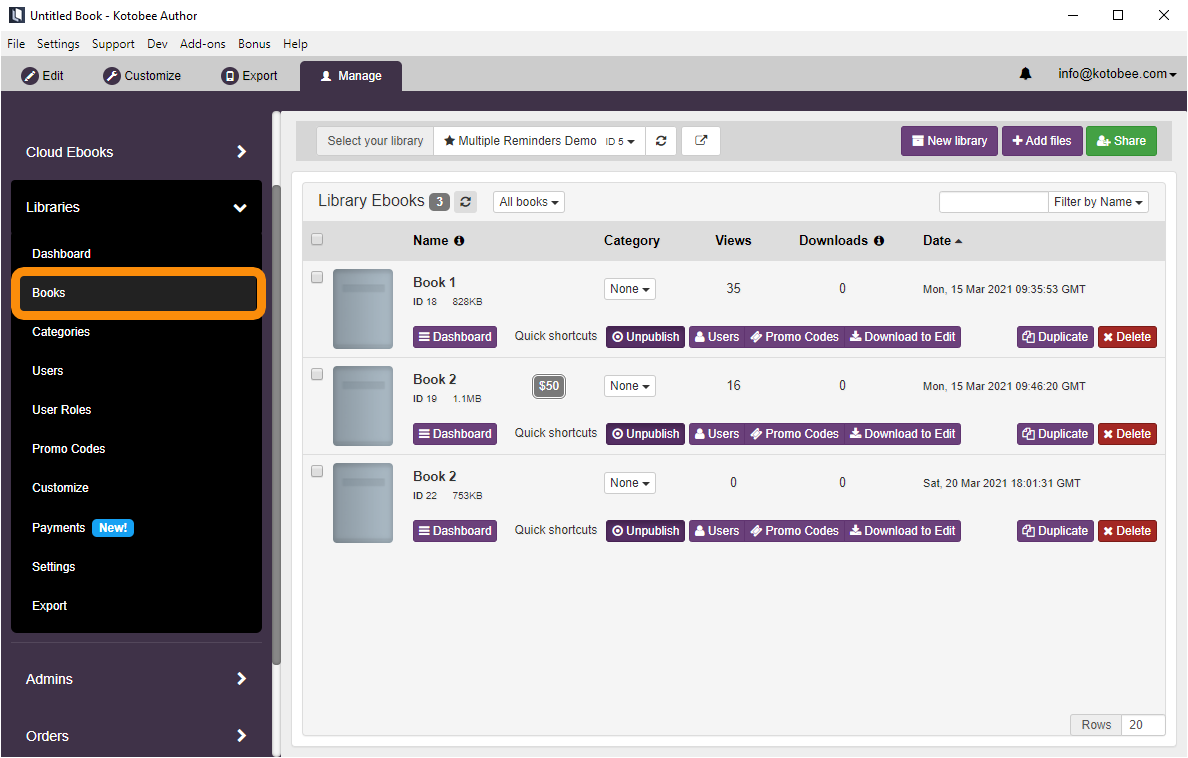
Locate the book of your preference and click on the Dashboard button.

Scroll to the Permissions and Pricing section. This is where you can enable a book for purchase and set its price.
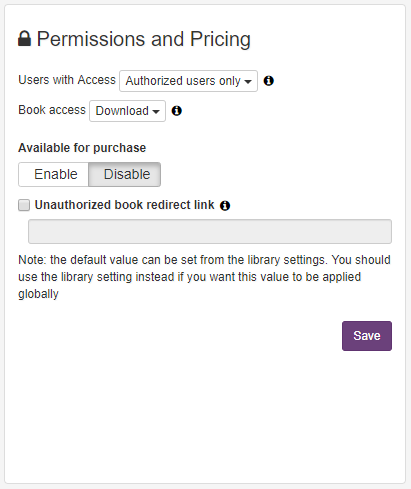
Click on the Enable button under Available for purchase. Once that is done, a price field automatically will appear. Enter the book's price into this field and click Save.

Click below to learn how to set up your payment methods to collect payments from different gateways.
What Readers See Before Purchasing
When a reader opens a paid ebook they have not yet purchased, the book page displays the price and a Buy button.
 Clicking Buy prompts the reader to log in or create an account.
Once logged in, the reader can complete the purchase and immediately access the ebook.