
Learn how to enable Smart Chat to allow readers to interact with an AI assistant directly inside ebooks in your Kotobee Library.
Smart Chat allows readers to interact with an AI-powered chatbot within the ebook interface. It provides explanations, summaries, and review questions based on the currently opened chapter, helping readers better understand the content without leaving the ebook.
This feature enhances engagement and supports self-paced learning.
What Smart Chat Can Do
Smart Chat is especially useful for educational ebooks, training materials, self-study courses, and language-learning content.
When enabled, Smart Chat can:
Provide explanations of difficult concepts
Generate summaries of the current chapter
Offer review or practice questions
Help clarify specific sections of the content
Where Smart Chat Is Available
Smart Chat works in:
Cloud ebooks
Kotobee Library ebooks.
Note: An active internet connection is required to use Smart Chat.
How to Enable Smart Chat for Ebooks before they're Uploaded to Your Kotobee Library
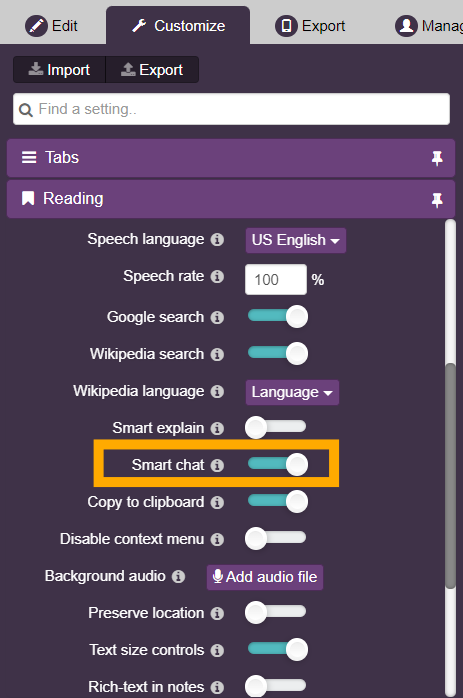
Open your ebook in Kotobee Author.
Go to the Customize tab.
Open the Reading section.
Enable the Smart Chat option.
Publish your ebook to your cloud library.
Now, readers with access to the ebook will see the Smart Chat option in the ebook's interface.
How to Enable Smart Chat for All Ebooks in Your Kotobee Library
If you have your ebooks already published in your kotobee library and you want to allow the smart chat option in all the ebooks in the library then please follow the following steps:
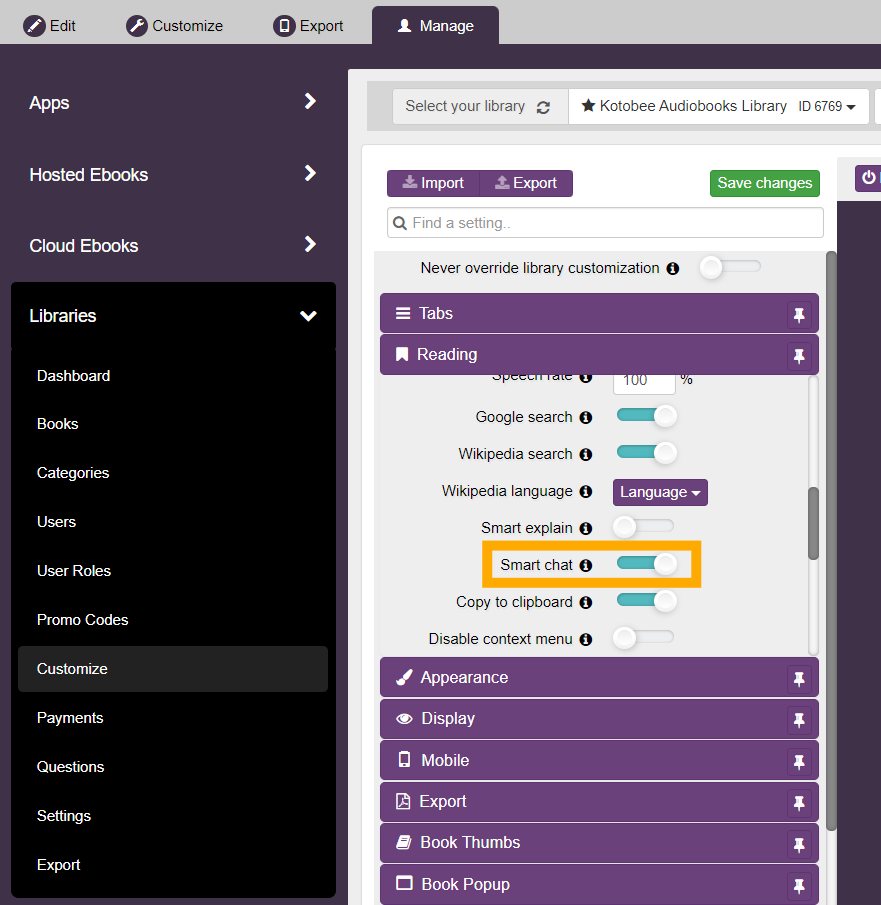
Go to the Manage tab.
Select your preferred library.
Click on the Customize tab from the library panel on the left.
Open the Reading section.
Enable the Smart Chat option.
Click on the Save changes button.
Now, readers with access to the library will see the Smart Chat option in any of the ebooks' interface.
How Readers Use Smart Chat
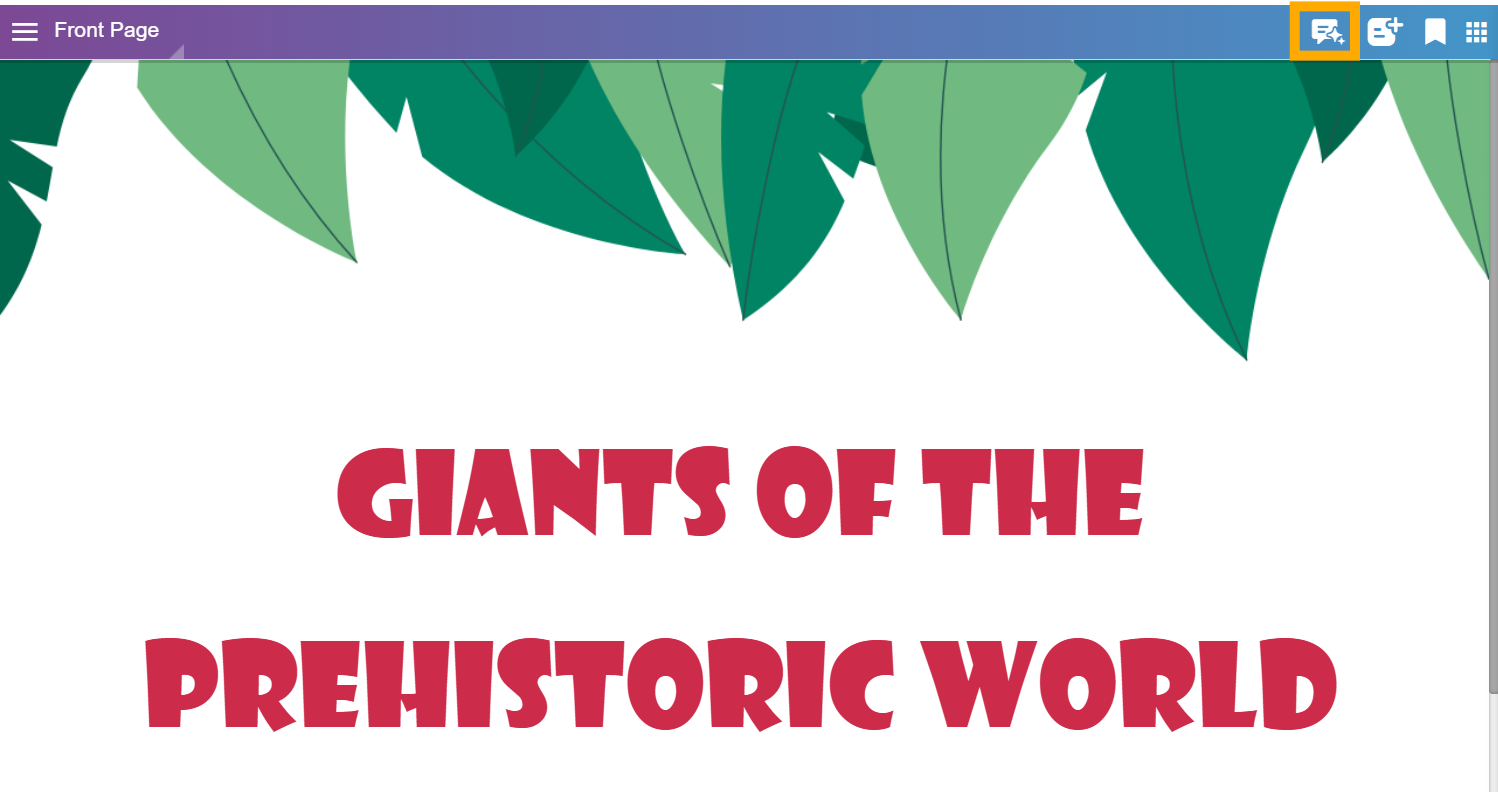
1. When readers open their ebook, they can click on the Smart Chat (Smart Assistant) icon at the top right corner.
2. The Smart Assistant panel will open on the right side of the ebook.
3. Readers can then choose one of the suggested prompts, such as:
Summarize the chapter
Help me understand further
Test me with questions
OR
They type their own question in the input field at the bottom of the panel.
4. Finally, they should press send to receive a response based on the currently opened chapter.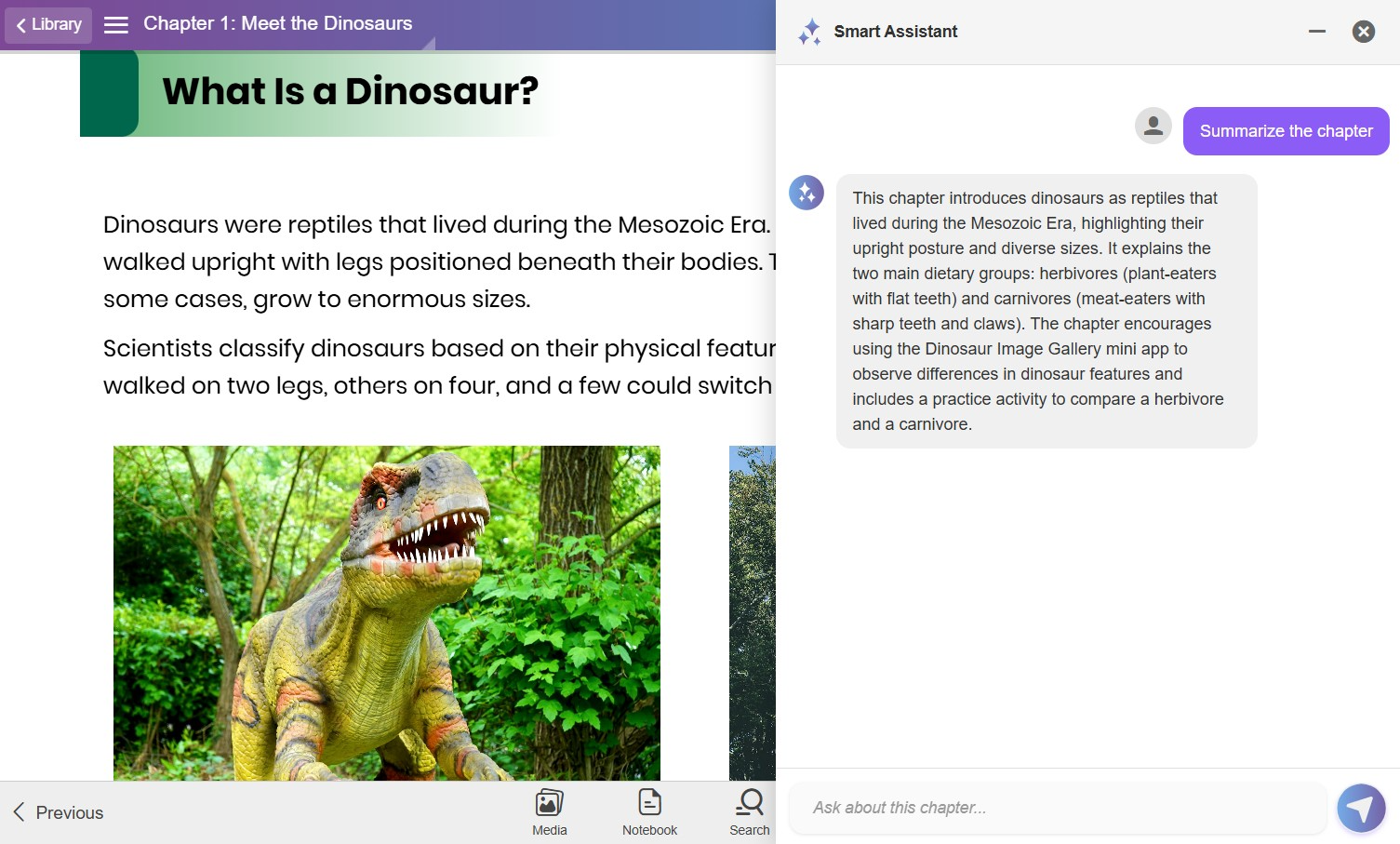
See Smart Chat in Action
You can view a live example of Smart Chat in this sample ebook:
https://dinasaurs-smartchat.kotobee.com/#/reader/chapter/0
Open the ebook and click the Smart Assistant icon in the top-right corner to try it yourself.
Important Notes
Smart Chat requires an internet connection.
Responses are generated dynamically based on the current chapter.
The quality and depth of responses may vary depending on the content structure.