
Learn how to import multiple PDF books into your Kotobee Library at once using an XLS sheet.
Bulk importing is especially useful for publishers, schools, and organizations managing large collections of books. Instead of adding titles one by one, you can prepare your book information in an XLS sheet and import multiple books in a single process.
Before You Start
Before importing your books, make sure that:
- Your books are available through direct PDF URLs.
- The PDF links are publicly accessible and downloadable.
- Cover image URLs (if used) are direct image links in JPG or PNG format.
- The XLS template headings remain unchanged.
- Category IDs already exist in your library if you plan to assign categories.
- Pricing information is entered only for purchasable books.
Important Notes
- Google Drive sharing links are not supported unless converted into direct download links.
- If no cover image is provided, the first page of the PDF will automatically be used as the book cover.
- Leaving the ID field empty will create a new book.
- Entering an existing book ID will update that book instead.
Steps for Importing PDF Books
1. Open Kotobee Author.
2. Click on the Manage tab.
The Manage screen will open.
3. Click on Libraries in the left panel.
4. Select your library from the drop-down menu in the top bar.
5. Select Books from the Libraries menu in the left panel.
6. From the Actions drop-down menu, select Import from XLS.
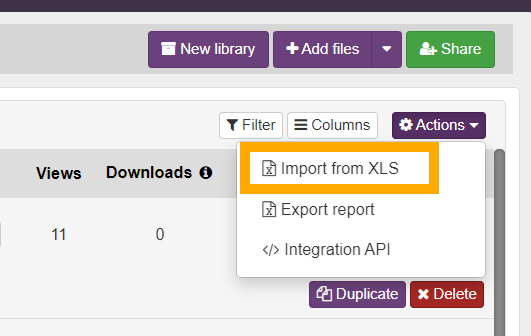 The Import from XLS window will open.
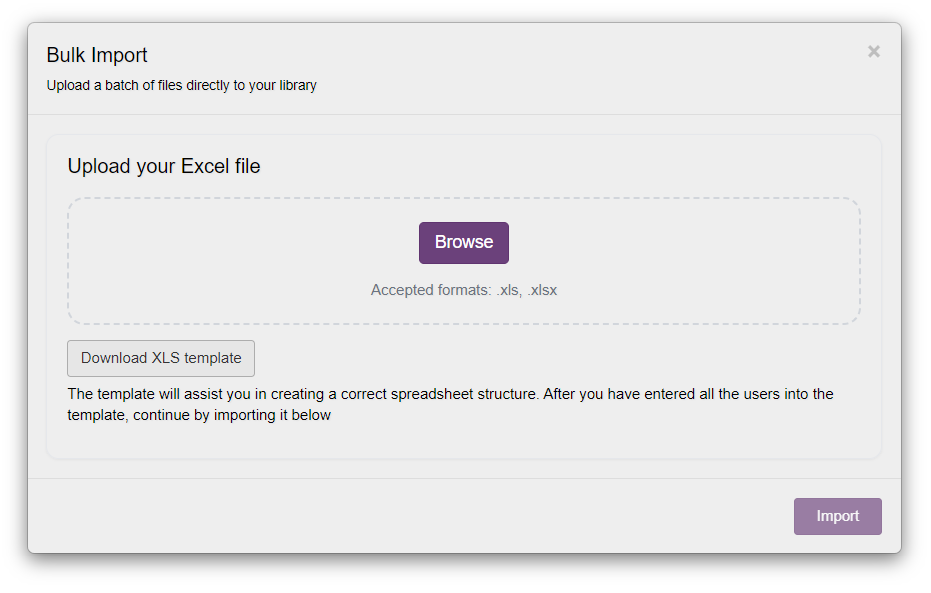
7. Select Download XLS template.
The Save As window will open for you to select your file destination and name.
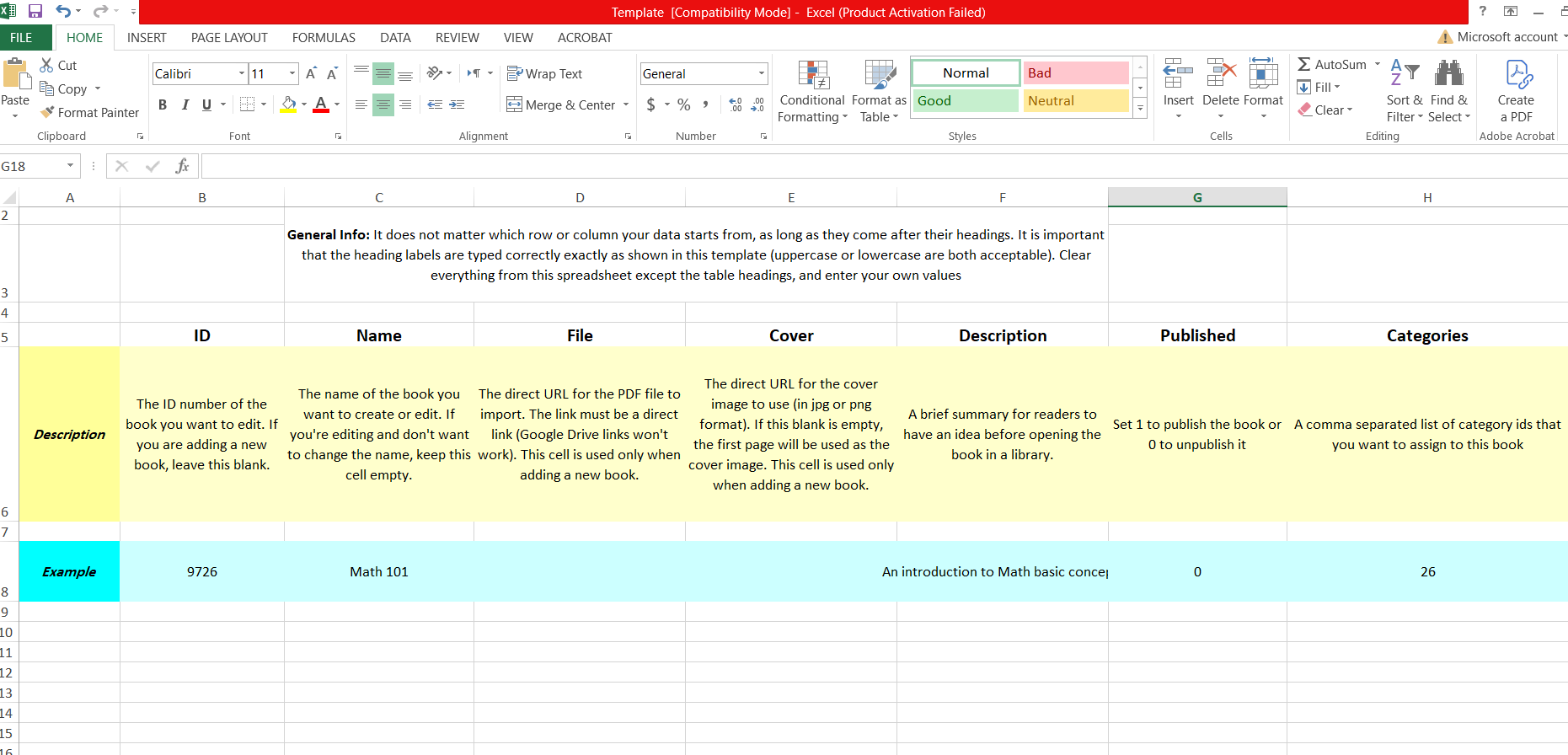
8. Open the template in Microsoft Excel or Google Sheets, then follow the instructions in the template to enter the required information for each book. After you're done, save the completed XLS file.
After that, go back to Kotobee Author to import the new XLS file.
9. Again, from the Actions drop-down menu, select Import from XLS.
The Import from XLS window will open.
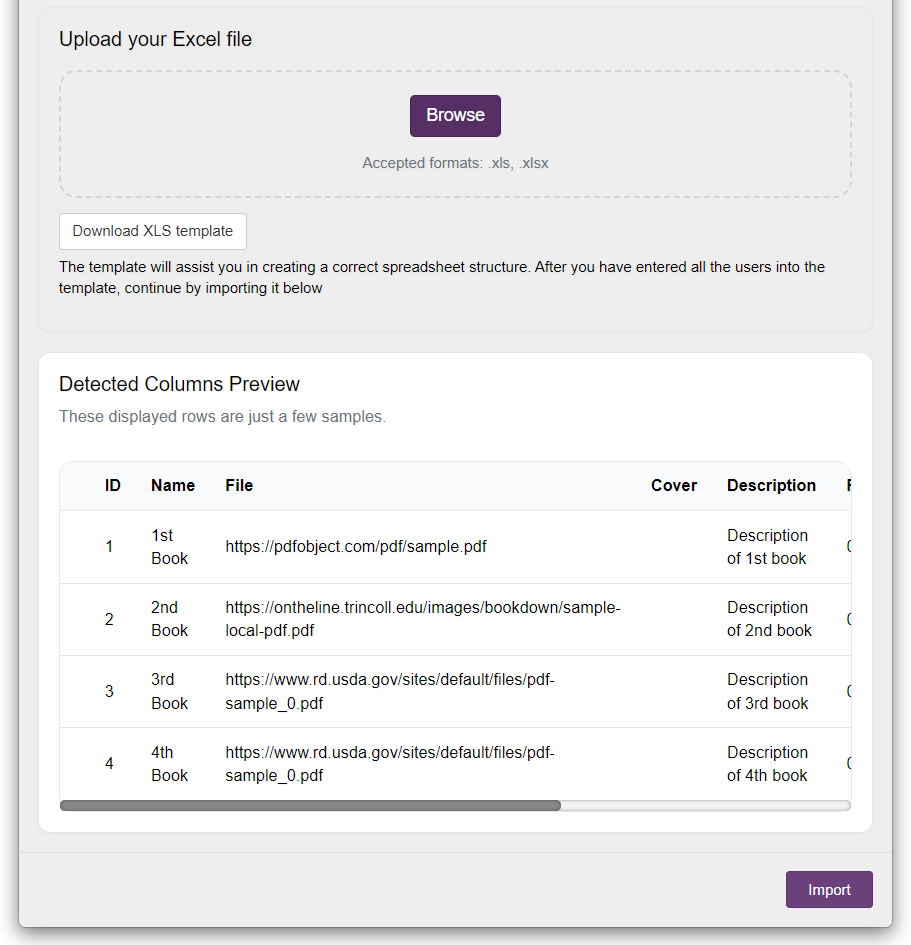
10. Click Browse, this time. Locate the template file that you just created, then click on Open.
11. After uploading the spreadsheet, a preview table will appear showing the detected columns and sample rows from your file. Review the displayed information carefully to ensure that:
- All columns were detected correctly.
- The book titles and PDF URLs are accurate.
- The correct cover images and descriptions appear.
- Pricing and category information are properly assigned.
12. Click Import to begin importing the books into your library.
Understanding the XLS template sheet
ID
Leave this field empty to create a new book.
If you enter an existing book ID, the corresponding book will be updated instead of creating a new one.
File
Enter a direct URL to the PDF file.
The PDF must be publicly accessible and downloadable. This field is supported only when adding a new book, not when editing one.
Cover
Optionally enter a direct URL to a cover image.
If left empty, Kotobee Library will automatically generate a cover using the first page of the PDF.
Category ID
Enter the ID of an existing category in your library.
Price and Discounted Price
Use these fields if the book will be sold through your library.
If both values are entered, the original price will appear crossed out, while the discounted price will be shown as the final purchase price.
Troubleshooting
The PDF is not importing
Make sure the PDF URL is publicly accessible and points directly to the PDF file.
The cover image is missing
Verify that the cover image URL is valid and publicly accessible.
The category is not assigned
Make sure the category ID already exists in your library before importing.
The book was updated instead of created
Check whether an existing book ID was entered in the ID column.