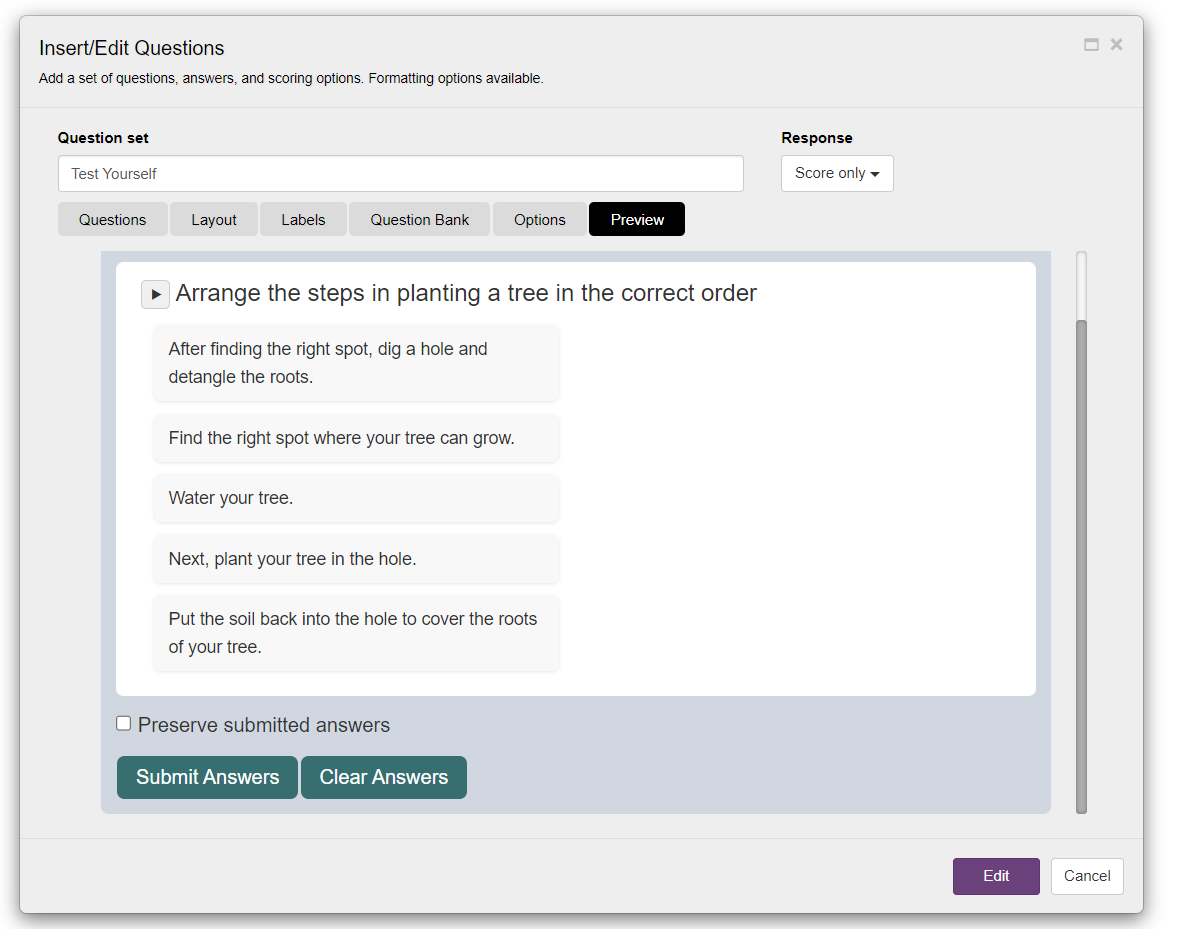
Learn how to add an ordering question to your ebook with Kotobee Author.
An Ordering Question asks readers to arrange a list of words or phrases into the correct sequence. You define the correct order, and the reader’s task is to rearrange the items accordingly.
A correct score is awarded only when the full sequence is arranged properly.
This type of question is useful for exercises such as:
Placing historical events in chronological order.
Arranging procedural steps in the correct sequence.
Sequencing story elements for children or early learners.
Steps to Add an Ordering Question
- Go to the toolbox on the right-hand side of the screen and click on the Questions button. The Insert/Edit Questions window will appear.
- Enter a Title for the question set. This title will appear as the heading for the questions module.
- Click on Response and select how the users receive the answers:
- Score only: Displays a score for the user after the answers are submitted.
- Score and answer report: Displays a detailed score report showing the correct and incorrect answers.
- Do nothing: Neither scores nor answers are given.
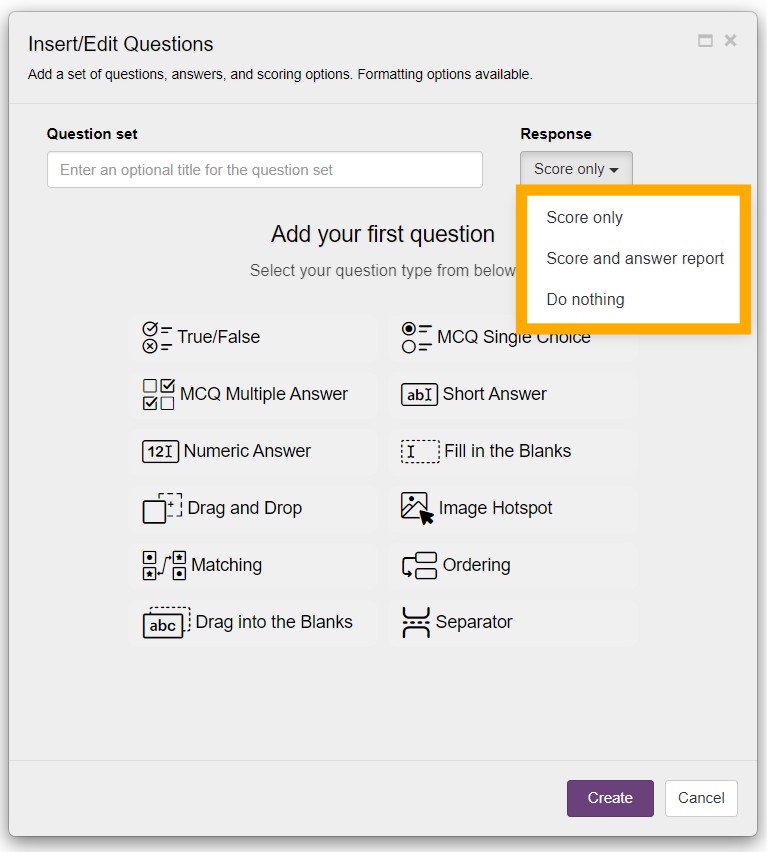
Click on the Ordering button to add it to your questions component.
Fill in the question text (for example: “Arrange the following steps in the correct order.”).
You can also switch to HTML Source Mode when editing the question title. This allows you to insert custom HTML for advanced formatting, such as inline styles, spans, or embedded elements.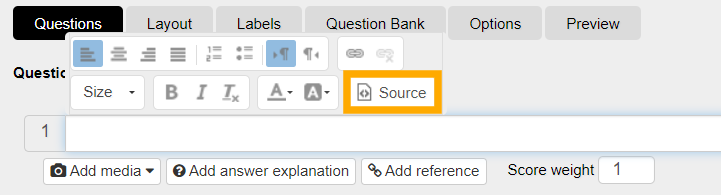
Enter the list of words or phrases in their correct sequence. These are the items the reader will reorder during the activity.
Choose how the items are displayed:
Horizontally
Vertically
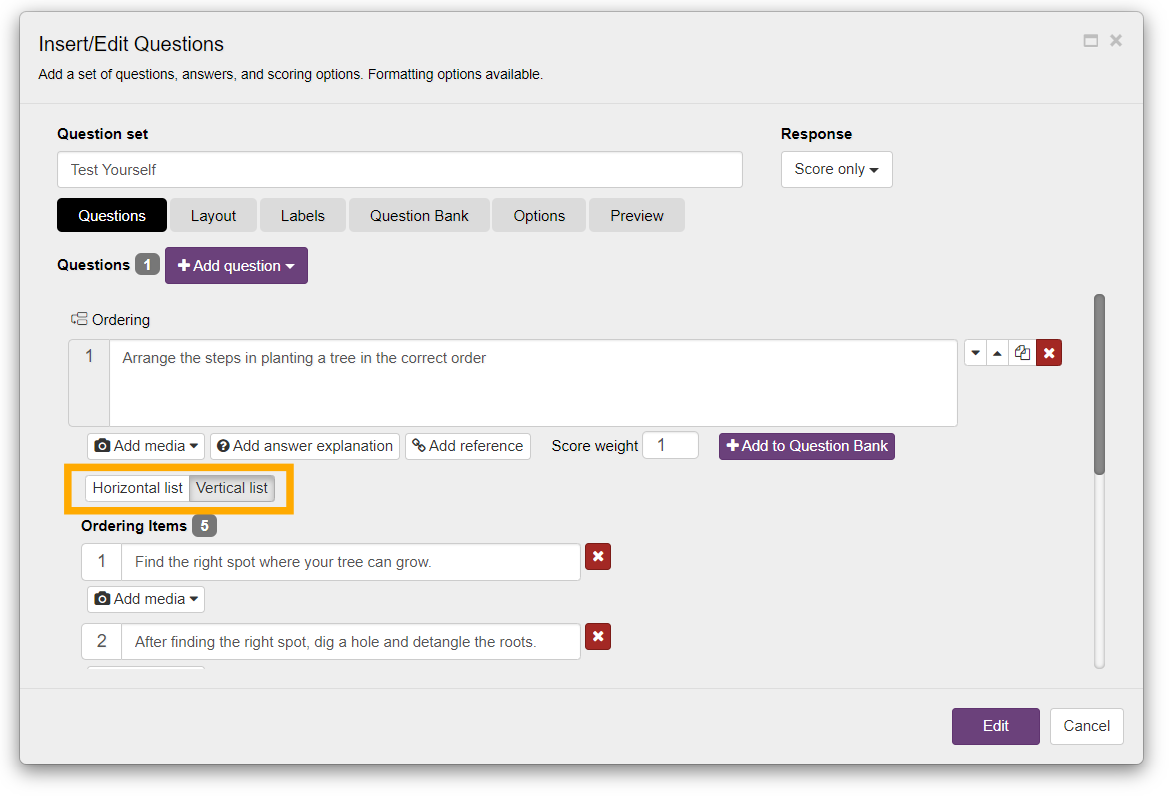
For each question, you can apply the following additions:
- Add media: Attach an image or an audio file as part of the question. Images can provide visual context (such as diagrams or photos), while audio clips can add spoken instructions, pronunciations, or sound effects, making questions more interactive and accessible.
- Add answer explanation: Displays further information/explanation after the questions are submitted. The explanation will appear in both cases: whether the question is answered correctly or incorrectly, and will appear under the answer choices.
- Add reference: Guide the user to an external source through a "Learn more" button. This will appear right below the explanation (explained above) once the user's answers have been submitted.
- Score weight: You can assign different weights for different questions in Kotobee Author. The default weight is 1. If all questions have the same score weight, this makes all the questions equal in terms of importance. In general, more important questions should receive higher score weights.
- Add to Question Bank: Save the question to your personal question bank so you can easily reuse it in other quizzes or ebooks without recreating it from scratch.
Note: This option only appears after you enter the question text.
8. Click on Create to finalize the questions.
Preview your Question
Use the Preview tab in the Insert/Edit Questions window to see exactly how your question will appear to readers before saving.