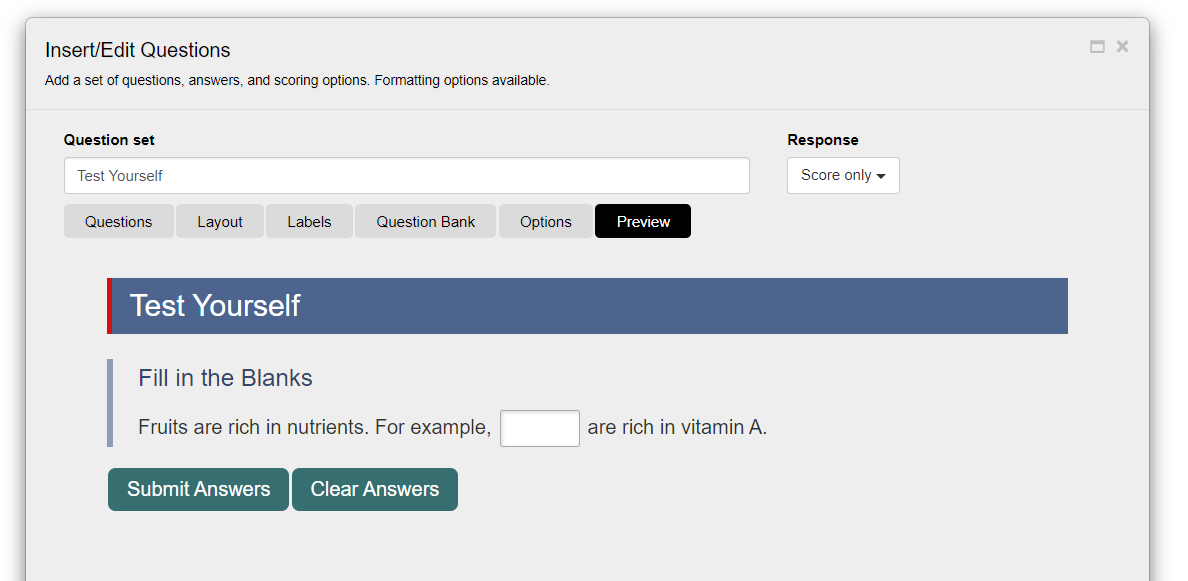
Learn how to add a fill-in-the-blanks question to your ebook with Kotobee Author.
A fill-in-the-blank question allows you to create sentences or short paragraphs with one or more missing words. Readers must type the correct answers to complete the text.
This question type is ideal for activities that require recall and accuracy rather than recognition.
Common use cases include:
Language learning exercises.
Vocabulary practice.
Completing definitions or key statements with specific terms.
Steps to Add a Fill-in-the-Blanks Question
- Go to the toolbox on the right-hand side of the screen and click on the Questions button.
The Insert/Edit Questions window will appear. - Enter a Title for the question set. This title will appear as the heading for the questions module.
- Select how the users receive the answers. Response:
- Score only: Displays a score for the user after the answers are submitted.
- Score and answer report: Displays a detailed score report showing the correct and incorrect answers.
- Do nothing: Neither scores nor answers are given.
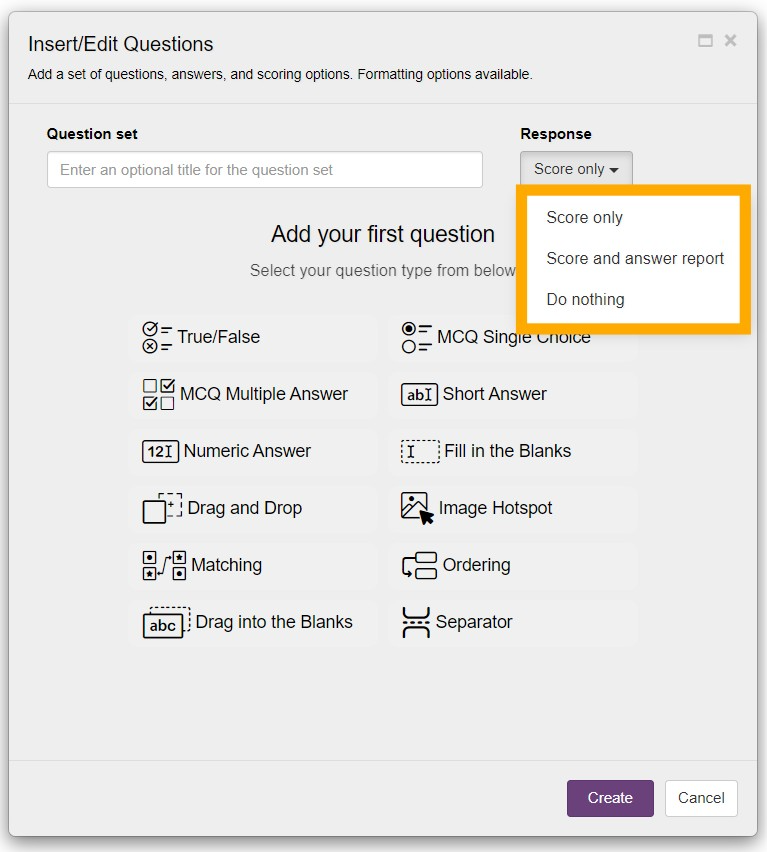
Click on the Fill in the Blanks button to add it to your questions component.
Enter the sentence or paragraph in the text field.
You can also switch to HTML Source Mode when editing the text. This allows you to insert custom HTML for advanced formatting, such as inline styles, spans, or embedded elements.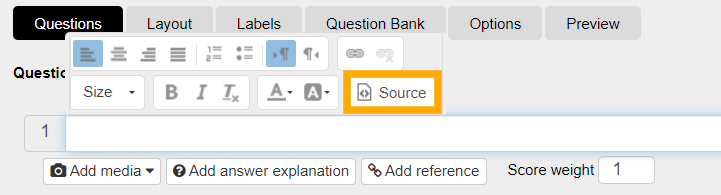
- Select the word or phrase you want to turn into a blank by highlighting it, then click Add Blank Field to convert the selected word into a blank.
Repeat this process for each word or phrase you want readers to fill in.
- If you need to remove all blanks and start over, click Reset All Blank Fields.
(Optional) Enable Case sensitive if learners must match the exact letter casing when entering their answers.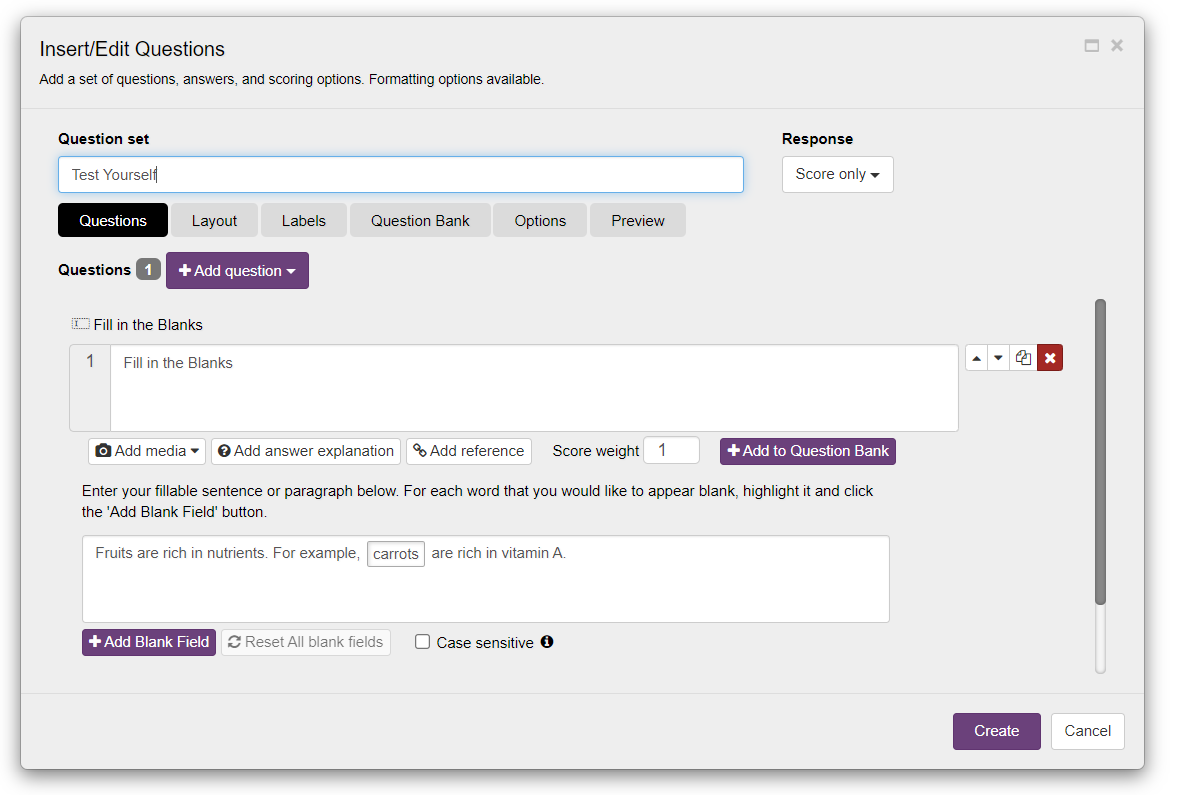
For each question, you can apply the following additions:
Add media: Attach images or audio files to support the question context, such as an image prompt or an audio clip for listening exercises.
Add answer explanation: Display additional information or clarification after the question is submitted. The explanation appears whether the answer is correct or incorrect.
Add reference: Guide the reader to an external source through a Learn more button. This appears below the explanation once the answers are submitted.
Score weight: Assign different weights to questions. The default weight is 1. More important questions can be given higher weights.
Add to Question Bank: Save the question to your personal question bank so you can reuse it in other quizzes or ebooks without recreating it.
Note: This option appears only after you enter the question text.
9. Click on Create to finalize the question.
Previewing your Question
Use the Preview tab in the Insert/Edit Questions window to see exactly how your question will appear to readers before saving.