
Learn how to download custom Google-Service push notification files from Firebase and add them to your mobile app in Kotobee Author.
Firebase is a collection of online tools from Google that you can use to add features to your app. One of these tools sends push notifications to users’ phones and tablets. For example, you could send readers a notification when new content is available in your app.
To use Firebase with your Kotobee mobile app, you create a Firebase project or use an existing one to store your app’s Firebase settings. You then download a configuration file (a small file containing the information your app needs to connect to that project) and add it to Kotobee Author. Android and iOS use different files, so download the file for each platform you want to export.
- Android:google-services.json
- iOS:GoogleService-Info.plist
If you are exporting for both Android and iOS, download both files.
Before you begin, make sure you have:
- A Google account to sign in to Firebase.
- Your app's Package ID. You can find it in the App information section of the mobile app export screen in Kotobee Author. For help, see Enter Your App Information.
In Firebase, use your app's Package ID as the Android package name or Apple bundle ID. Copy it exactly, including uppercase and lowercase letters. The screenshots use sample values; enter your own app information.
Create a Firebase Project
If you already have a Firebase project, open it and go to Download the Android File or Download the iOS File below.
If you have already added your app to the project, go to Download the Files Again.
If you do not have a Firebase project, create one by following these steps:
Go to the Firebase Console and sign in with your Google account.
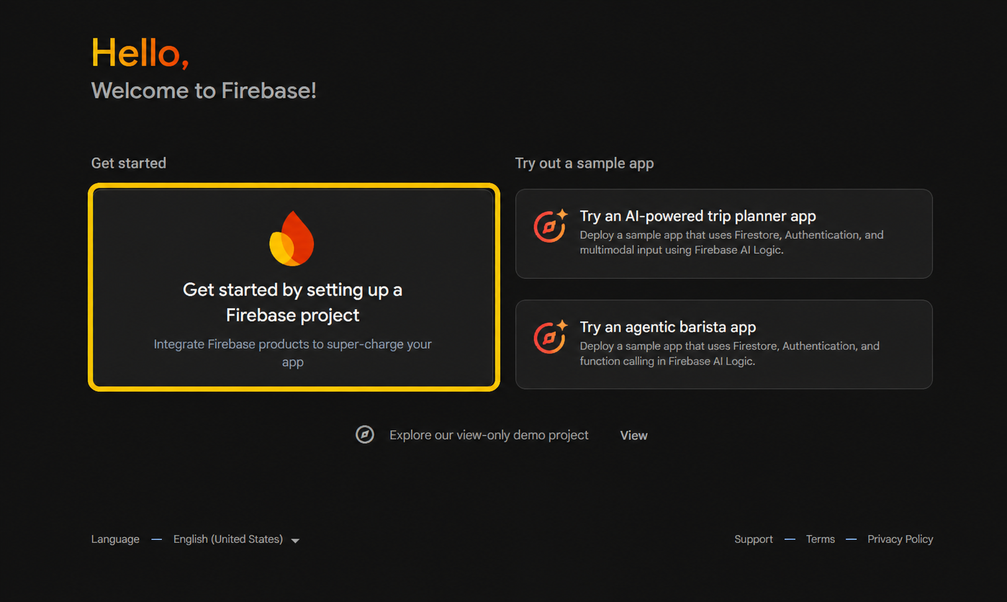
Click Get started by setting up a Firebase project.
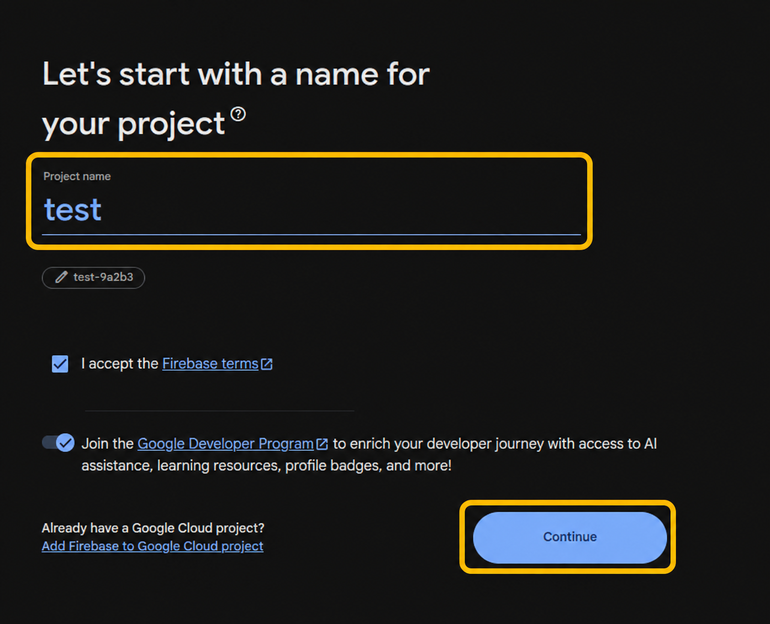
- Enter a Project name. Review and accept the Firebase terms if prompted, then click Continue.
- Follow the remaining setup prompts, then click Create project.
- When the project is ready, open it.
Download the Android File
Follow these steps to add your Android app to Firebase and download its configuration file.
- In your Firebase project, open Settings (the gear icon), select General.
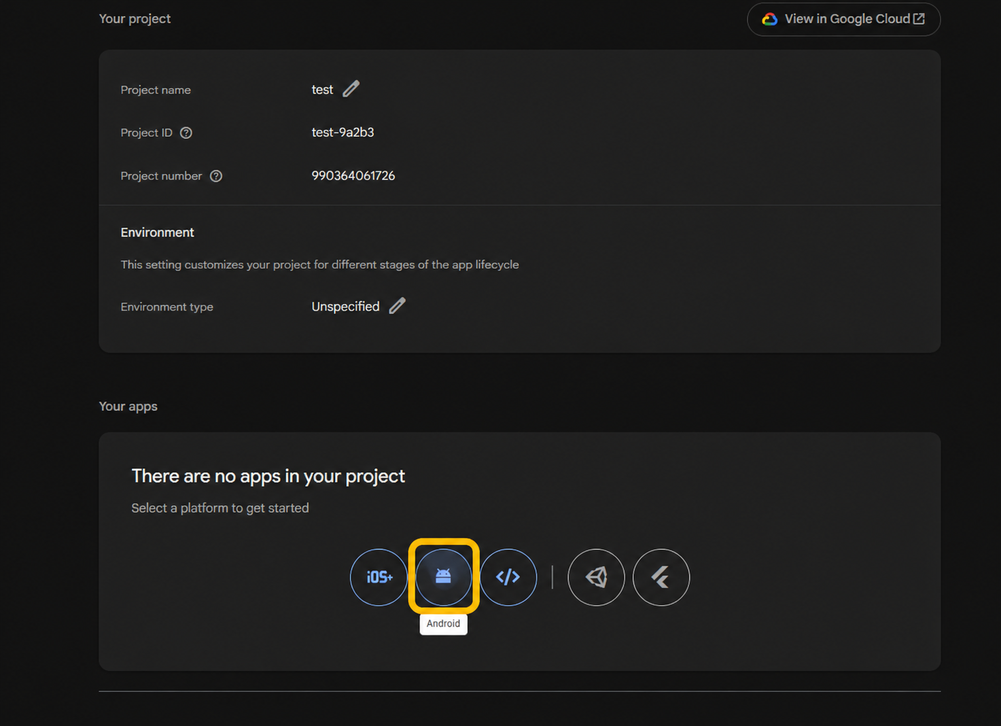
- Scroll down to Your apps and click the Android icon. If other apps are listed, click Add app first, then select Android.
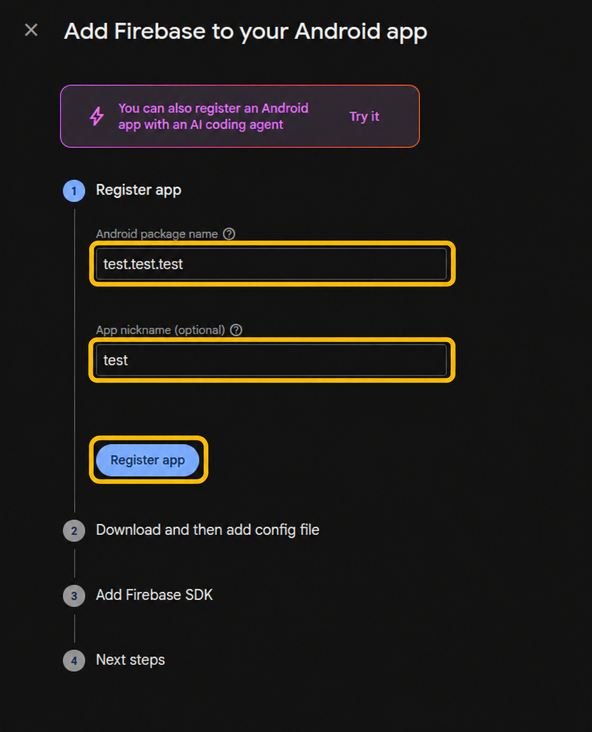
- In Android package name, enter your app's Package ID from Kotobee Author. You can also enter an optional App nickname to help you identify the app in Firebase.
- Click Register app.
- Click Download google-services.json and save the file to your computer.
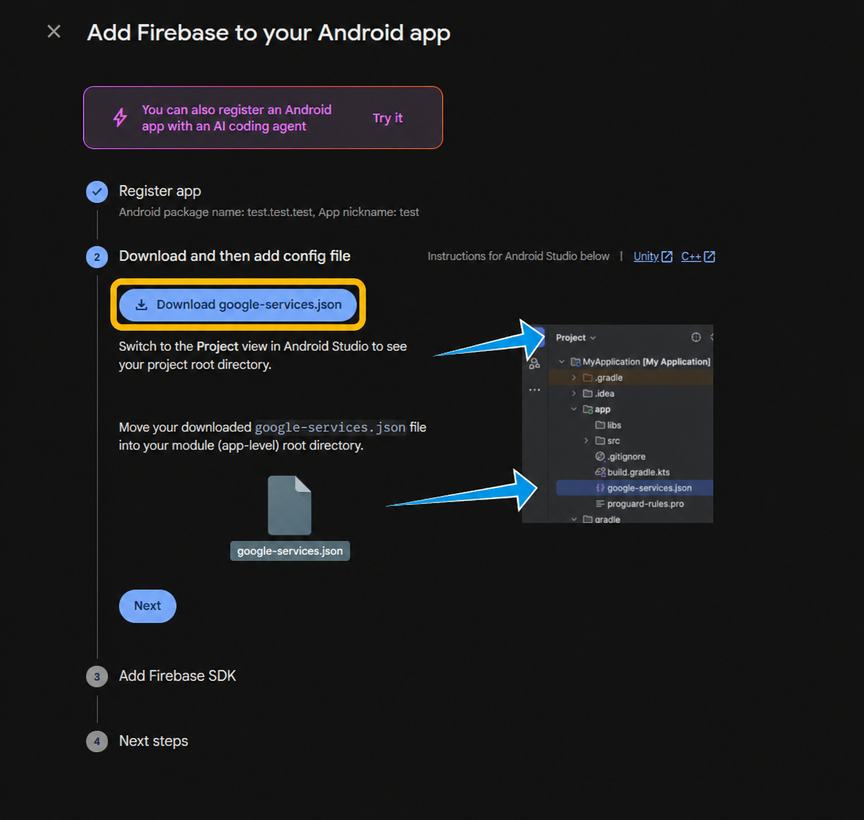
If you are also exporting an iOS app, continue with the next section. Otherwise, go to Add the Files to Kotobee Author.
Download the iOS File
Follow these steps to add your iOS app to Firebase and download its configuration file.
- In your Firebase project, click Settings (the gear icon) and select General.
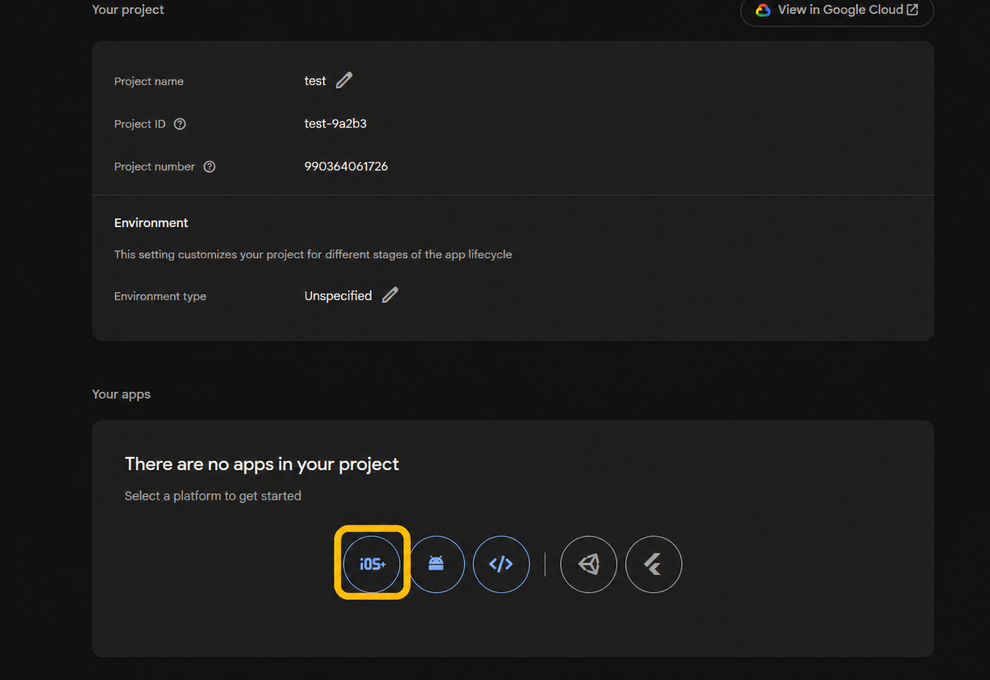
- Scroll down to Your apps and click the iOS+ icon. If other apps are listed, click Add app first, then select iOS+.
- In the Apple bundle ID field, enter your app’s Package ID from Kotobee Author. You can also enter an App nickname to help you recognize the app in Firebase.
- Click Register app.
- Click Download GoogleService-Info.plist and save the file to your computer.
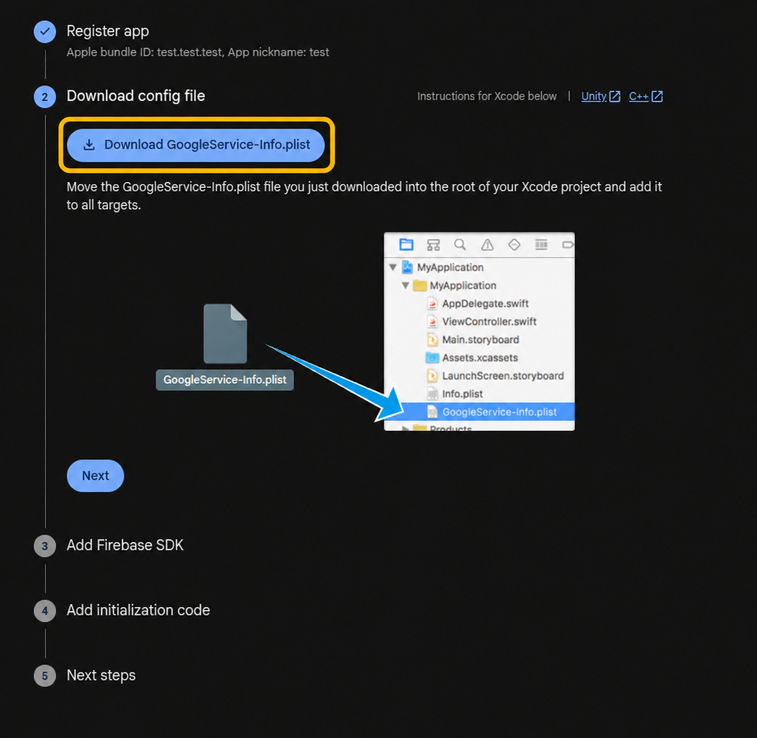
Note: The filenames must be google-services.json for Android and GoogleService-Info.plist for iOS. If your browser adds extra characters, such as (1) or (2), remove them from the filename before adding the file to Kotobee Author.
Add the Files to Kotobee Author
After downloading the file for each platform you want to export, open your ebook in Kotobee Author.
- Click the Export tab.
- Select Export Mobile App from the left panel.
- Select the Allow push notifications checkbox.
- For Android, click + Add google-services.json and select the google-services.json file you downloaded.
- For iOS, click + Add GoogleService-Info.plist and select the GoogleService-Info.plist file you downloaded.
Add the file for the platform you want to export. If you are exporting for both Android and iOS, add both files. Then continue with your mobile app export settings.
Download the Files Again
If you have already added your app to Firebase, you can download its configuration file again without adding the app a second time.
- Open your project in the Firebase Console.
- Click Settings (the gear icon) and select General.
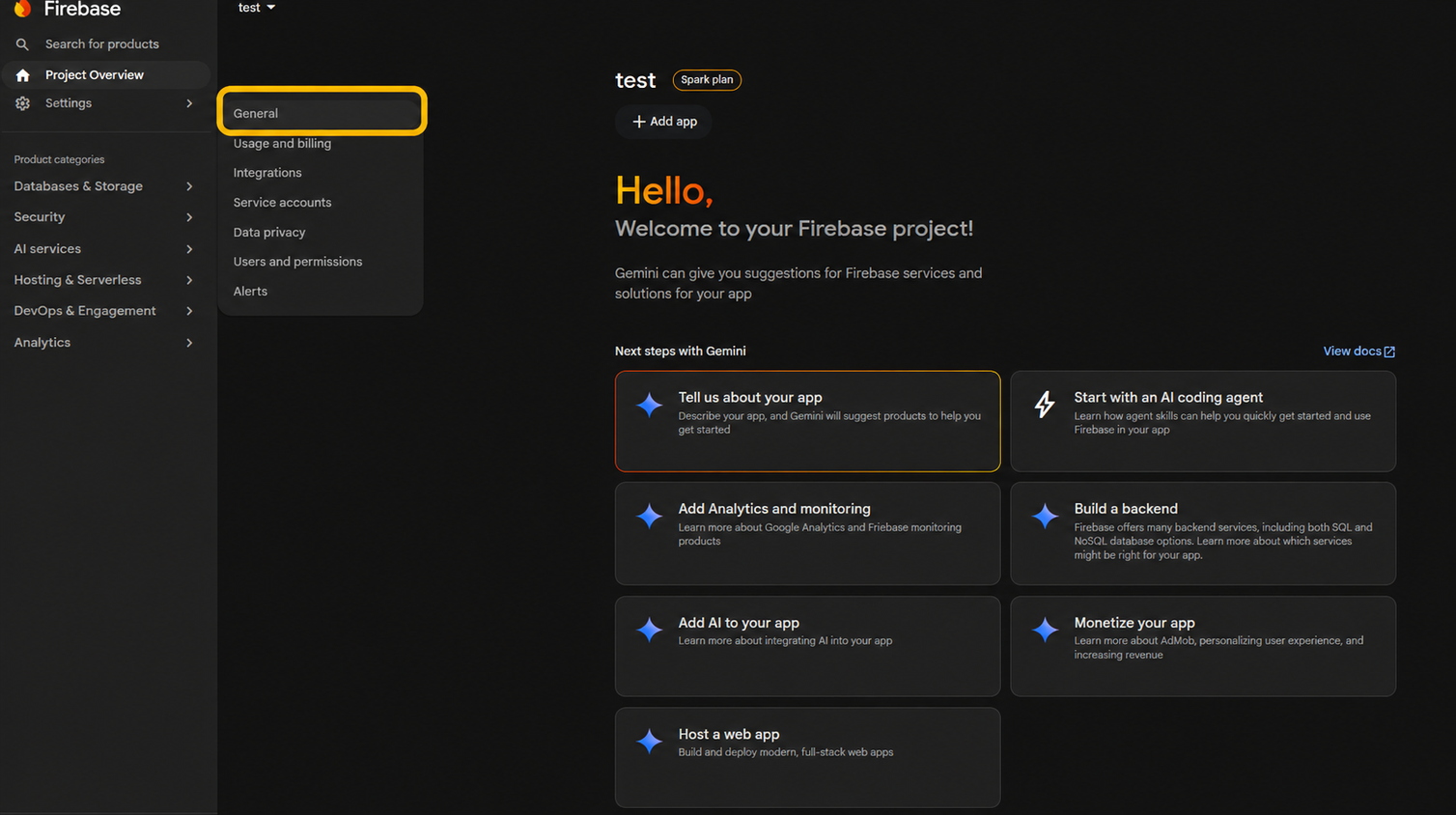
- Scroll down to Your apps. Select the Android or iOS app whose package name or bundle ID matches your Package ID in Kotobee Author.
- Click google-services.json for Android or GoogleService-Info.plist for iOS to download the file.
Next, follow the steps under Add the Files to Kotobee Author above.
For more information, see Firebase’s guide to downloading configuration files.